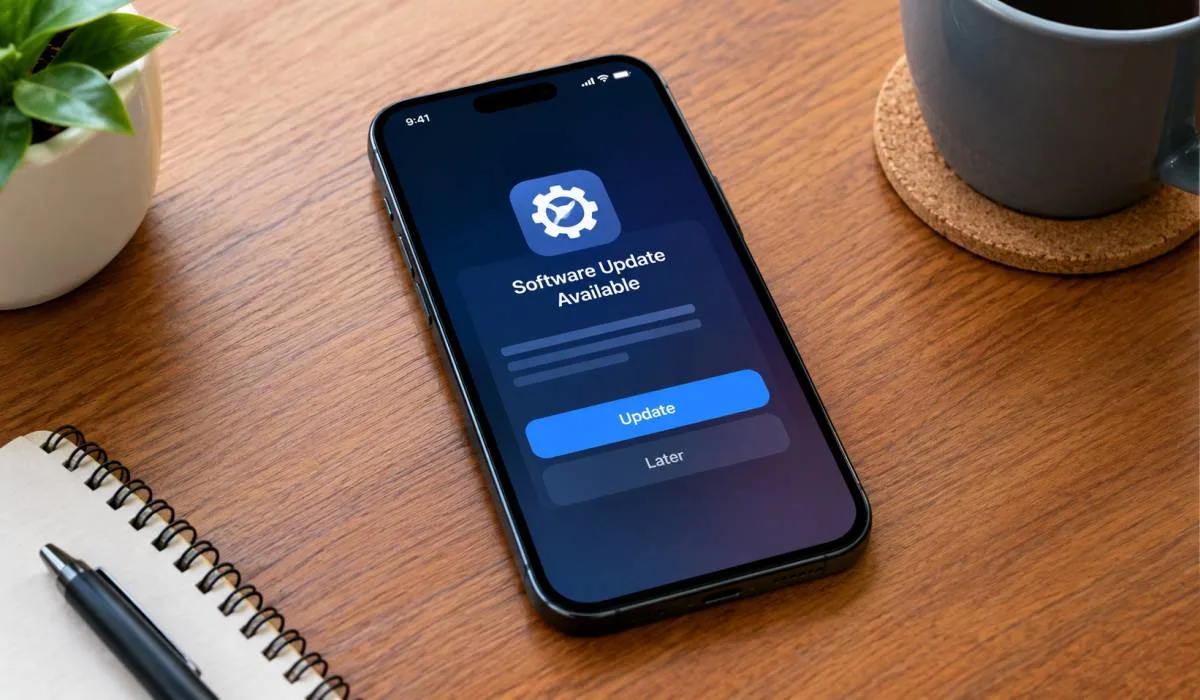
Your phone keeps buzzing. Update available you press Later again and again. But updates matter they keep your phone safe they fix problems add new things. Learning how to update mobile phone software is easy. Open Settings. Tap Software Update, tap Download and Install.
That is it takes 15 to 45 minutes free no charges. Do it on Wi-Fi Keep phone charged backup first. For Samsung, same steps, for old phones, check if update exists. If not, maybe time for new phone do not ignore updates. They protect you let me explain simply.
Why Should You Update Your Phone?
Before we start, let me tell you why updates matter.
- Security: Hackers find new ways to break into phones. Updates fix these holes. Without updates, your phone is open to attacks.
- New Features: Updates bring new things. Better camera. New AI features. Improved battery life. Things you did not have before.
- Bug Fixes: Apps crash? Phone hangs? Updates fix these problems. Your phone runs smoother.
- App Support: New apps need new software. Old software cannot run them. If you do not update, you get left behind.
- Battery Life: Updates often improve battery. They fix things that drain power.
So yes. Updates are good. Do them.
Read More: Latest Mobile Phone Features in 2026: Simple Guide to New Smartphone Features
Method 1: How to Update Mobile Phone Software (Android)
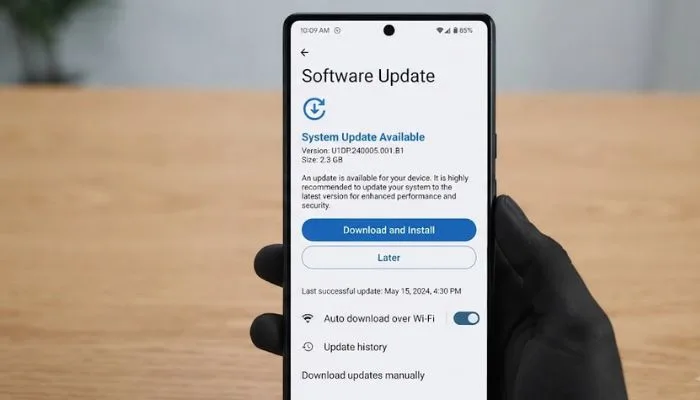
This works for most Android phones. Samsung, OnePlus, Xiaomi, Realme, Vivo. All similar.
Steps:
- Open Settings on your phone
- Scroll down and tap Software Update or System Update
- Tap Download and Install
- Wait for phone to check for updates
- If update available, tap Download
- Wait for download to finish
- Tap Install
- Phone will restart
- Done
Important: Connect to Wi-Fi before updating. Updates are big. They use lot of data. And keep phone charged above 50%.
Time: Takes 15-45 minutes depending on update size.
Method 2: Samsung Phone Update Software Download
Samsung phones have their own way. But similar to above.
Steps:
- Open Settings
- Tap Software Update
- Tap Download and Install
- Wait for check
- Tap Download if available
- Tap Install after download
- Phone restarts automatically
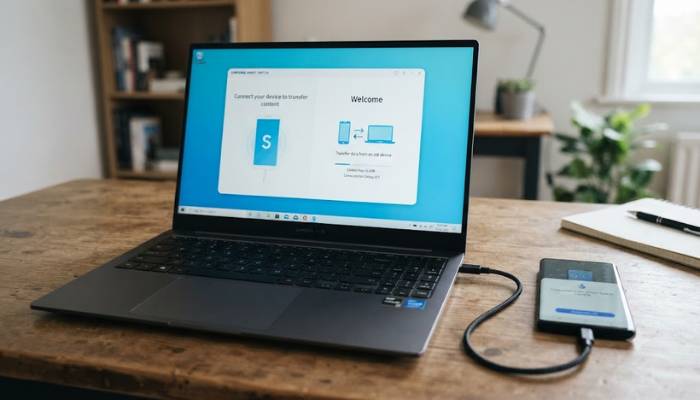
For Samsung, you can also use Smart Switch:
- Install Samsung Smart Switch on PC
- Connect phone with USB cable
- Open Smart Switch
- Click Update if available
- Follow steps
Samsung update schedule:
- Flagship phones: Monthly security updates
- Mid-range phones: Quarterly updates
- Budget phones: Twice a year
Samsung gives 7 years of updates for new flagship phones. That is very good.
Method 3: How to Update Old Android Phone to Latest Version
Old phones do not always get new Android versions. But you can try.
First check your Android version:
- Open Settings
- Tap About Phone
- Tap Android Version
- See the number
If update is available:
- Open Settings
- Tap System or Software Update
- Tap Check for Update
- If available, download and install
If no update available:
Your phone maker stopped support. This happens with old phones. They only give updates for 2-3 years. After that, no new Android version.
What can you do?
- Option 1: Custom ROM
This is advanced. You install a new version of Android made by community. Like LineageOS. It gives new Android on old phone. But it is risky. Can break phone. Voids warranty. Not for everyone. - Option 2: Use apps that work on old Android
Some apps need new Android. But many still work. Check Play Store for compatibility. - Option 3: Buy new phone
Honest truth. If your phone is 5+ years old, and no updates, maybe time for new phone. Old phones become slow. Security risk.
Method 4: How to Update Old Android Phone to Latest Version Free
Updates are always free. You do not pay for software updates. Ever.
Free ways to update:
Over-the-Air (OTA):
This is normal method. Settings > Software Update. Free. Uses Wi-Fi.
Samsung Smart Switch:
Free software on PC. Updates Samsung phones. Free.
Manufacturer websites:
Some brands let you download firmware. Like Samsung Firmware. But this is advanced. Not recommended for normal users.
Google Play System Update:
This is separate from Android version. It updates core Google parts. Open Settings > Security > Google Play System Update. Check for update. Install. Free.
App updates:
Open Play Store. Tap profile. Tap Manage Apps. Update all. Free.
All these are free. No hidden charges. If someone asks money for update, it is scam.
Method 5: Update My Phone Software Online
Some people search "update my phone software online". Let me be clear.
You cannot update phone through website. Not directly. Updates come through phone settings or PC software.
But you can:
- Check update availability online
- Download Smart Switch from Samsung website
- Download firmware from manufacturer site (advanced)
- Read update news online
Fake websites warning:
Many websites say "update your phone online free". These are scams. They steal data. They install viruses. Do not trust them. Only use official settings on your phone.
Method 6: iPhone Software Update
For iPhone users, steps are similar.
- Open Settings
- Tap General
- Tap Software Update
- Tap Download and Install
- Enter passcode
- Agree to terms
- Wait for download
- Tap Install
- Phone restarts
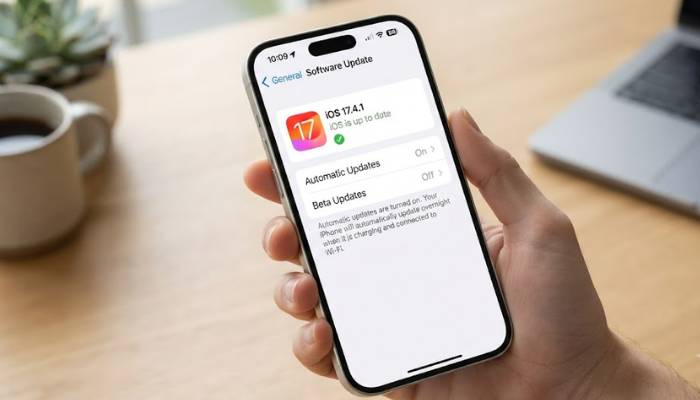
Automatic updates:
Settings > General > Software Update > Automatic Updates. Turn on. Phone updates at night while charging.
What to Do Before Updating?
1. Backup your phone
Updates can sometimes go wrong. Backup first. Use Google Drive or Samsung Cloud.
2. Charge your phone
Keep battery above 50%. Better if 80%. Update uses lot of power.
3. Connect to Wi-Fi
Updates are big. 1GB to 5GB. Do not use mobile data.
4. Free up storage
Need space for update file. Delete old photos. Remove unused apps. At least 5GB free.
5. Note important passwords
Phone will restart. You may need passwords. Keep them handy.
You May Also Read: What Is LTPO Display in Mobile Phones? Complete 2026 Guide
Common Update Problems and Fixes
Update stuck?
- Wait 10 minutes
- If still stuck, restart phone
- Try again
Not enough storage?
- Delete videos
- Clear cache
- Uninstall apps
- Try again
Update failed?
- Check Wi-Fi
- Check battery
- Restart phone
- Try again
Phone slow after update?
- Wait 2-3 days
- Phone is optimizing apps
- It will get better
Battery draining fast after update?
- Normal for first week
- Phone is learning your usage
- Will improve
App crashing after update?
- Update the app
- Clear app cache
- Reinstall app if needed
How Often Should You Update?
- Security updates: Install immediately. These are important.
- Feature updates: Install when convenient. Within a week.
- Major Android updates: Wait 1-2 weeks. Check reviews. Sometimes bugs. Let others test first.
Check monthly: Open Settings. Check for updates. Do it on 1st of every month. Make it habit.
Final Words
Updating your phone is easy. Open Settings. Tap Software Update. Tap Download and Install that is it.Do not ignore updates. They keep you safe. They make phone faster. They add new features. And they are free.
For Samsung users, use Settings or Smart Switch. For old phones, check if update available. If not, consider new phone. For iPhone, Settings > General > Software Update. Backup first, charge phone, Connect Wi-Fi then update Simple.
Now go update your phone. Do not press "Later" again.
FAQs
1. How do I update my phone software?
Open Settings. Tap Software Update or System Update. Tap Download and Install. Wait for check. If update is there, tap Download. Then tap Install. Phone restarts. Done. Simple. Works on most Android phones. Samsung, OnePlus, Xiaomi, Realme, Vivo. All same steps.
2. Is phone software update free?
Yes. Always free. You never pay for updates. If someone asks money, it is scam. Updates come through Settings. Or through Samsung Smart Switch on PC. Both free. Google Play System Update also free. App updates on Play Store also free. No hidden charges. Ever.
3. How to update old Android phone to latest version?
First check Settings > About Phone > Android Version. Then Settings > System > Check for Update. If available, install. If no update, your phone maker stopped support. Old phones get updates for 2-3 years only. After that no new Android version. You can try custom ROM but risky. Voids warranty. Better to buy new phone if very old.
4. How long does a software update take?
Download takes 10 to 30 minutes. Depends on internet speed. Install takes 10 to 20 minutes. Total 15 to 45 minutes. Phone restarts during install. Do not panic. It will turn on. Keep phone charged above 50%. Connect to Wi-Fi. Do not use mobile data.
5. What should I do before updating my phone?
Backup first. Use Google Drive or Samsung Cloud. Charge phone above 50%. Better 80%. Connect to Wi-Fi. Free up storage. At least 5GB free. Delete old photos. Remove unused apps. Note important passwords. Phone will restart. You may need them.
6. Phone stuck during update. What to do?
Wait 10 minutes. Sometimes it takes time. If still stuck, restart phone. Press power button for 10 seconds. Phone will restart. Try update again. If still fails, check Wi-Fi. Check battery. Check storage. Restart and try again. Usually works.
7. Can I update my phone software online?
No. You cannot update through website. Not directly. Updates come through phone Settings. Or through PC software like Samsung Smart Switch. Many websites say "update online free". These are scams. They steal data. Install viruses. Do not trust them. Only use official settings on your phone.
8. How often should I update my phone?
Security updates: Install immediately. Important for safety. Feature updates: Install within a week. Major Android updates: Wait 1-2 weeks. Check reviews first. Sometimes bugs. Let others test. Check monthly. Open Settings. Check for updates. Do it on 1st of every month. Make it habit.